Bloomberg reports that Apple will finally unveil its long-delayed smart home display on October 13, alongside a refreshed HomePod mini and Apple TV. Amazon has already put Alexa+ on a new run of Echo speakers and displays, and Google is rolling Gemini for Home onto its Nest speakers and displays. If you live in a mixed household — one iPhone, one Pixel, an Echo in the kitchen that nobody wants to throw out — the obvious question is: do I have to pick one?
With Matter, you don’t. Matter’s Multi-Admin feature lets a single device sit in Apple Home, Google Home, Alexa, SmartThings and Home Assistant at the same time, each controlling it locally. It’s one of the best things about the standard, and also one of the least understood. Done carelessly, it gives you duplicate devices, automations that fight each other and a mysterious “can’t add device” error six months down the line.
Here’s how to do it properly.
What Multi-Admin actually is (and isn’t)
Every smart home platform is a Matter controller, and each controller builds its own fabric — a private, encrypted relationship between that platform and your devices. Multi-Admin simply means a device belongs to several fabrics at once.
The important part is that every controller talks to the device directly over your local network. Google Home isn’t relaying commands through Apple’s servers, and Alexa isn’t asking SmartThings for permission. If one platform’s cloud has a bad day, the others keep working, as long as their own hubs are up.
What Multi-Admin does not do is share anything above the device itself. Each platform treats a shared device as brand new: you rename it, put it in a room and rebuild your automations from scratch. Nothing syncs between platforms. Matter 1.6’s Joint Fabric is designed to fix that with one shared network that every platform co-administers. However, as German trade site matter-smarthome.de notes, no Matter ecosystem currently synchronizes its fabric with the others. For now, Multi-Admin is the tool we have.
The five-fabric budget nobody tells you about
This is the bit that catches people out. The Matter spec requires certified devices to support at least five fabrics at once. Five is the minimum, not a guaranteed maximum, but it’s the number to plan around because you rarely know which devices go higher.
Five sounds generous until you learn that Apple Home uses two of them. Apple syncs Matter accessories through iCloud Keychain, which needs a second, separate fabric. Look at a device’s fabric list in Home Assistant and you’ll often see an “Apple Keychain” entry sitting next to Apple Home.
| Platform | Fabric slots used | What you need for Matter |
|---|---|---|
| Apple Home | 2 (Home + Apple Keychain) | Apple TV 4K or HomePod/HomePod mini as a home hub |
| Google Home | 1 | A recent Google Nest speaker or display, Nest Wifi Pro or Google TV Streamer |
| Amazon Alexa | 1 | A Matter-capable Echo device |
| Samsung SmartThings | 1 | A SmartThings hub (Station, Aeotec hub, or a Samsung TV/appliance with the hub built in) |
| Home Assistant | 1 | A Home Assistant server running the Matter integration |
Do the maths: Apple Home (2) + Google Home (1) + Alexa (1) + Home Assistant (1) = five. That device is full. Add SmartThings and the pairing fails. Some manufacturer apps also act as controllers and take a slot of their own, so the real headroom can be even smaller.
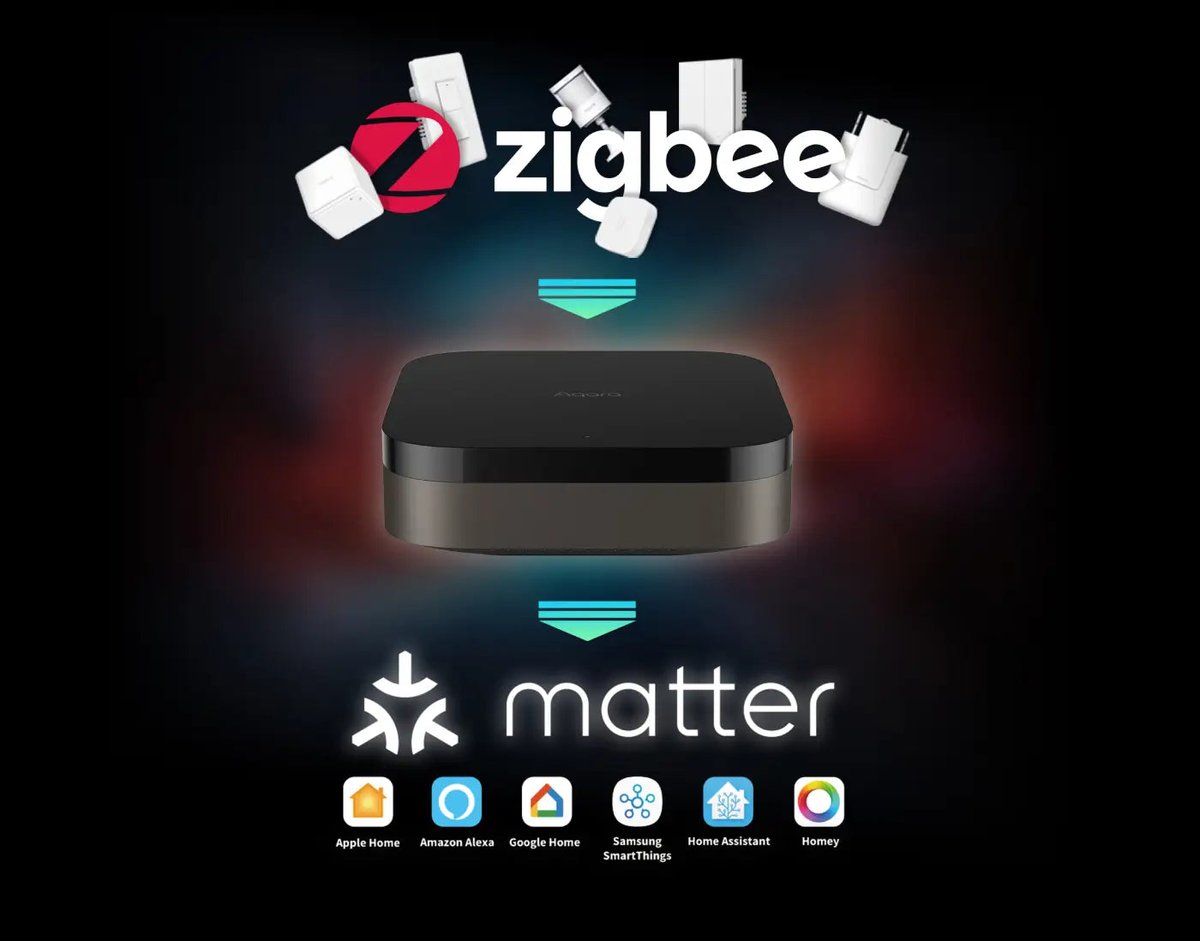
There’s an upside, though. Fabrics are counted per Matter node, not per light or sensor. A Matter bridge (a Hue Bridge, an Aqara hub, an IKEA Dirigera) is one node. Sharing the bridge to four platforms uses four or five slots on the bridge, and the dozens of Zigbee devices behind it don’t spend anything. If you’re running a big Zigbee estate, that makes a bridge the most fabric-efficient way to go multi-platform.
Before you share: pick a home base
The first platform you add a device to matters more than the rest:
- Commission into your most reliable hub first. Choose the platform with an always-on, wired or well-placed hub and the best support for that device type. Everything else becomes a guest.
- Check device-type support on every platform. Matter covers a lot of device types, but platforms adopt them at different speeds. Apple only added Matter robot vacuums in iOS 18.4, for example. A device that’s fully featured in one app can show up as a bare on/off switch, or not at all, in another.
- Thread devices join one Thread network. A Thread device joins the network of whoever commissioned it first. Other platforms reach it over IP through that network’s border router, so technically you only need one. In practice, every Apple TV, HomePod mini, Nest Hub and Echo with a Thread radio may be running its own Thread network. You can end up with several weak meshes instead of one strong one. If your Thread devices are already flaky, fix that first. A dedicated coordinator, covered in our Zigbee and Thread coordinator guide, and a sensible smart home network layout solve more problems than any app setting.
Step by step: sharing from each platform
Two rules apply everywhere. First, the QR code on the box or device only works for the first setup (or after a factory reset). To add a second platform, you generate a fresh code from a platform that already controls the device. Second, those sharing codes are temporary. Google, Amazon and Samsung all expire them after 15 minutes, so open the receiving app before you generate the code.
On the receiving side, every app’s flow is similar. Choose “Add device”, pick Matter, and when it asks for the QR code, use the option to enter a setup code instead.
From Apple Home
- Touch and hold the accessory, then tap Accessory Settings.
- Scroll to the bottom and tap Turn On Pairing Mode.
- Tap Copy Code and paste it into the other platform’s app.
Apple’s Matter support page also covers adding a device that already lives in another app: you generate the code in that app and enter it in Home.
From Google Home
- Open the device, then its Settings.
- Tap Linked Matter apps & services, then Link apps & services.
- Pick the target app (it has to be installed already), then choose Use pairing code or Share with QR code.
Google’s help page confirms the code expires if you don’t finish within 15 minutes.
From Amazon Alexa
- In the Alexa app, go to Devices and select your Matter device.
- Open its settings and tap Other Assistants and Apps.
- Tap Add Another and copy the 11-digit pairing code. It’s valid for 15 minutes.
From Samsung SmartThings
- Select the device, tap More (⋮), then Share with other services. The Connected Services section shows what it’s already shared with.
- Tap Share device to get a QR code and setup code.
- Keep that screen open while you enter the code elsewhere. Navigating away can kill it.
From Home Assistant
- Go to Settings → Connectivity → Matter → Devices and select the device.
- Tap Share device, then confirm. You’ll get a QR code and a sharing code, and there’s no need to press a button on the device.
Going the other way, pulling a device that’s already in Google or Apple into Home Assistant, you need the Companion app on your phone. Add a Matter device there and answer “Yes. It’s already in use.” when asked. The full flow is in the Home Assistant Matter docs.
Five ways Multi-Admin bites, and how to avoid them
1. “Can’t add device” months later
That’s usually a full fabric table. Removing a device from one platform doesn’t remove it from the others, and old fabrics from platforms you’ve abandoned hang around forever. Clean them out with Home Assistant’s Manage fabrics menu (in the device’s three-dot menu), SmartThings’ Connected Services, Google’s Linked Matter apps & services or Alexa’s Other Assistants and Apps list. A factory reset wipes every fabric at once, which is the right move before you sell a device or move house.
2. Two of everything
Bridges are the worst offenders. If Alexa already sees your Hue lights through the Hue skill and you also share the Hue Bridge over Matter, you get two copies of every bulb. The same goes for Aqara hubs with a cloud integration, or SmartThings devices you’ve linked to Google through the old cloud-to-cloud connection. Pick one path per platform. Matter is usually faster and local. A native integration sometimes exposes features Matter doesn’t map yet, so check both before you decide, then delete the loser.
3. Dueling automations
Two platforms, one motion sensor, two “turn on the hallway light” automations with different timeouts. The light flickers off and on, and everyone blames Matter. The fix is a rule, not a setting: one automation brain per device. Let one platform run the logic. Every other platform gets voice control and a dashboard tile, and nothing else.
4. Nobody owns firmware updates
Matter supports over-the-air updates, but which controller delivers them varies, and it doesn’t always work. Home Assistant’s own documentation warns that its Matter updates currently fail for Thread devices on a Thread network that includes any Apple border router. Very few mixed homes avoid that. The pragmatic answer is to keep the manufacturer’s app installed for updates, even if you never use it for anything else. Just remember it may cost you a fabric slot.
5. The Thread network splits
If devices start dropping after you add a new hub, check whether that hub started its own Thread network rather than joining the existing one. Thread 1.4 is meant to make credential sharing between ecosystems routine. Until every border router in your house supports it, the fewer separate Thread networks you run, the better your mesh holds up.
The setups I’d actually recommend
The iPhone-and-Android household. Make Apple Home the home base with an Apple TV 4K or HomePod mini as the hub, then share each device to Google Home. That uses three fabrics and leaves two spare. Put all your automations in Apple Home. The Android user gets Google Home controls and Gemini voice commands, and nothing argues with anything.
The tinkerer. Home Assistant is the primary controller and the only place automations live. Share out to Apple Home, Google Home or Alexa purely for voice and dashboards. If you went the local-voice route with Voice PE, you may only need one cloud assistant at all, which keeps your fabric budget healthy.
The Zigbee-heavy home. Let a bridge do the heavy lifting. The Aqara Hub M3 is a Zigbee coordinator, Thread border router, Matter controller and Matter bridge in one box. It can expose your Aqara sensors, switches and locks to Apple Home, Google Home, Alexa, SmartThings and Home Assistant at once, and the fabric cost falls on the hub rather than on each device. It lists at $159.99 in the US (€159.99 in Europe, £159.98 in the UK) and has been seen on sale for $99.99. Hue owners get the same benefit from the bridge they already have; our Hue Bridge Pro review covers how much faster the new one is.
What Apple’s new hub changes, and what it doesn’t
If Apple’s display arrives on October 13 as reported, expect plenty of households to add one to an existing Google or Alexa setup rather than rip it out. That’s exactly the scenario Multi-Admin was built for. One reassuring detail: extra hubs within a platform don’t use extra fabric slots. Each fabric belongs to the platform’s home, not to each box, so a new Apple display joins the Apple Home fabric you already have. The same applies to a new Echo Show or Nest Hub.
What it won’t change is the five-slot ceiling or the need for discipline. Choose a home base, keep automations in one place, use bridges where you can, and check your fabric lists once in a while. Do that and running three ecosystems at once is boring, which is exactly how a smart home should feel. If you’re still deciding which assistant should be that home base, our Gemini vs. Alexa+ vs. Siri breakdown is a good place to start.