Your smart home is probably fine. Your Wi-Fi is the problem.
Not the speed of it — the shape of it. Almost every “my smart home is unreliable” complaint I’ve seen traces back to the same handful of network settings, and none of them are fixed by paying your ISP for a faster plan or buying a router with more antennas. A gigabit connection and a $1,000 mesh system will still drop your smart plugs if the underlying configuration is wrong.
Here’s the thing nobody tells you when you buy your first smart bulb: the smart home runs on a completely different set of network assumptions than your laptop does. Once you understand what those are, the fixes take about thirty minutes and mostly cost nothing.
Why your devices are stuck on 2.4GHz (and always will be)
Open your router app and look at what’s connected. Your phone, laptop and TV are almost certainly on 5GHz or 6GHz. Nearly everything else — plugs, bulbs, sensors, that robot vacuum — is huddled on 2.4GHz.
This isn’t laziness on the manufacturers’ part. 2.4GHz has longer range and passes through walls far better than the higher bands, and the radio chipsets are dramatically cheaper. When you’re building a smart plug that needs to retail for $12 and sit inside a metal-shielded wall cavity, 2.4GHz-only is the correct engineering decision. It’s also why the band is going nowhere: Matter over Wi-Fi devices ship as 2.4GHz-only today, and the economics that put them there haven’t changed.
So you have a permanent split in your house. Half your devices are on a crowded, slow, long-range band. Half are on a fast, short-range one. And most consumer routers, by default, actively try to pretend that split doesn’t exist.
The four things that actually break smart homes
1. Band steering, the feature that’s supposed to help
Most modern routers broadcast one network name and silently decide which band each device lands on. It’s called band steering, and for phones and laptops it’s genuinely useful.
For smart home gear it’s a disaster. A 2.4GHz-only bulb can’t be steered anywhere — but the router doesn’t know that, so it keeps trying. Worse, during setup, your phone is usually sitting on 5GHz while the device you’re pairing can only see 2.4GHz. Many pairing flows require both to be on the same band, and when it fails you get a generic “couldn’t connect” message with no explanation.
If you’ve ever had a device pair perfectly on the fifth attempt for no apparent reason, this is almost certainly why.
2. Airtime congestion nobody is measuring
2.4GHz has three genuinely non-overlapping channels: 1, 6 and 11. That’s it. Your neighbours are using them too, as is your microwave, your Bluetooth headphones and every Zigbee network within range.
Now put forty smart devices on that band. Each one is chatty — keepalives, status polls, cloud heartbeats. Individually trivial; collectively, they saturate airtime rather than bandwidth. Your speed test still says 900Mbps because your laptop is on 6GHz. Meanwhile a light switch is waiting 400ms for a clear slot to transmit.
Two settings matter here. Lock 2.4GHz to channel 1, 6 or 11 rather than “auto” — auto-channel selection loves to park you on channel 3, which overlaps two of the three good ones. And set the 2.4GHz channel width to 20MHz, not 40MHz. Wider channels sound better and are actively counterproductive on a band this crowded.
3. Multicast filtering, the silent killer
This is the one that catches people who do know what they’re doing.
Smart home discovery runs on multicast — mDNS/Bonjour for HomeKit, AirPlay and Matter; various broadcast protocols for everything else. It’s how your phone finds a HomePod, how a Matter controller finds a new device, how multi-room audio systems keep speakers in sync.
Routers hate multicast, because it’s inefficient by design. So they filter it. IGMP snooping, “multicast enhancement”, “multicast-to-unicast conversion” — all well-intentioned optimisations, all capable of eating exactly the discovery packets your smart home depends on. Ubiquiti’s UniFi gear is notorious for this: its IGMP snooping implementation is aggressive enough that HomePods and Matter devices routinely fall off, and the standard advice in the UniFi community is to turn multicast filtering off entirely and leave “Multicast to Unicast” unchecked on your IoT Wi-Fi network.
If your devices work fine for hours and then go “unavailable” until you restart something — look here first.
4. IPv6 being switched off
Matter is IPv6-only at the network layer. Not “IPv6-preferred” — IPv6-only. Matter over Wi-Fi needs IPv6 link-local routing to work at all, and Thread is IPv6-native by definition.
Plenty of people disable IPv6 on their router because a forum post from 2014 said it was a security risk, or because their ISP doesn’t offer it and they assumed it was dead weight. Then they buy a Matter device and it refuses to pair with no useful error. You don’t need IPv6 from your ISP for this — you need it enabled on your LAN so link-local addressing works.
The fix, tier one: split your SSIDs (free, 15 minutes)
The single highest-value change you can make costs nothing.
Go into your router settings and split the bands into separate network names. Something like Home for 5/6GHz and Home-IoT for 2.4GHz. Same password is fine — the point isn’t security here, it’s determinism.
Then:
- Put every smart home device on the 2.4GHz SSID.
- Put phones, laptops, TVs and consoles on the main one.
- During device setup, temporarily join your phone to the 2.4GHz SSID. This alone fixes the majority of “won’t pair” problems.
- Set the 2.4GHz radio to channel 1, 6 or 11, at 20MHz width.
- Confirm IPv6 is enabled on the LAN.
Some mesh systems — eero in particular — don’t expose per-band SSIDs at all, which is a deliberate simplicity trade-off. If you’re on one of those, you’re relying on the vendor’s steering logic being good. It usually is, but you’ve given up the escape hatch.
The fix, tier two: a real IoT VLAN
If your gear supports it, the next step is putting smart home devices on their own VLAN with their own subnet.
The security argument is the obvious one: a cheap Wi-Fi camera with firmware from 2021 and no update path should not be sitting on the same flat network as your laptop and your NAS. Segmentation means a compromised device can reach the internet but not your file shares.
The performance argument is just as real. Broadcast and multicast traffic is contained within a VLAN, so forty chatty devices stop shouting at your work laptop.
But — and this is where most DIY VLAN projects fall over — segmentation breaks discovery. Your iPhone on the trusted VLAN can no longer see the HomePod on the IoT VLAN, because mDNS doesn’t cross subnet boundaries. You need an mDNS reflector (UniFi calls it “IoT Auto Discovery”) explicitly enabled between that specific pair of networks — it’s not a global toggle — plus firewall rules allowing established return traffic from IoT to trusted.
Get this wrong and you’ll spend a weekend convinced your smart home is broken when actually it’s working perfectly and just can’t be found.
My honest advice: if you’re not comfortable writing firewall rules, do tier one and stop there. A well-configured split-SSID flat network beats a badly configured VLAN every single time.
What to actually buy
You may not need anything. Fix the settings first. But if your hardware genuinely can’t do the job, here’s where the money goes in 2026.
Best value: TP-Link Deco BE63 (~$430 for a three-pack, frequently discounted to $360–390). Rebranded as the Deco 7 Pro BE63 at the start of 2026, this is the tri-band Wi-Fi 7 mesh most people should buy. Four 2.5GbE ports on every node is unusually generous at this price, which matters more than you’d think — every device you can move to Ethernet is one less thing competing for airtime. Setup is genuinely idiot-proof, though the Deco app buries the band-splitting option.
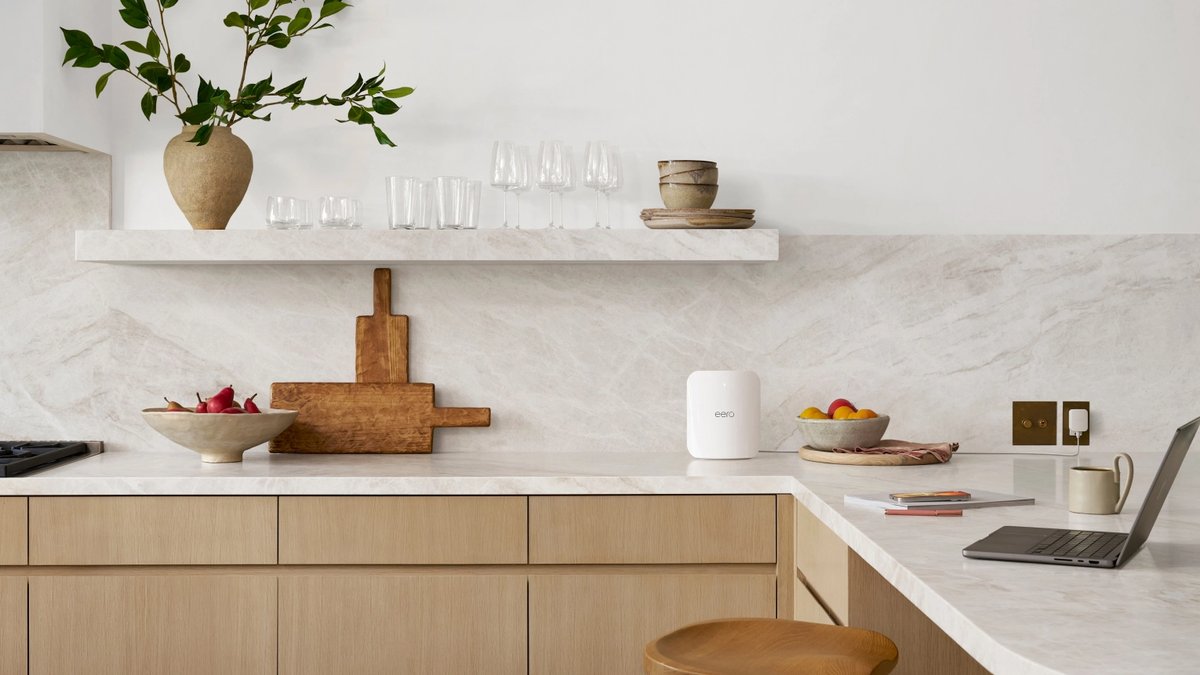
Best for smart home integration: eero Pro 7 ($299.99 single, $549.99 two-pack, $699.99 three-pack). Expensive per node, but it has a built-in smart home hub: it’s a Thread border router, a Matter controller and a Zigbee hub in one box. If you’ve got Zigbee sensors and Thread devices scattered around, that consolidation is worth real money. The catch is eero’s philosophy — you get very few knobs to turn, and no per-band SSIDs. Buy it if you want it to just work; avoid it if you want control.
Cheapest Thread border router that’s also a router: Google Nest Wifi Pro ($199.99 for a single unit at Google’s store; three-packs regularly drop to around $300). It’s Wi-Fi 6E rather than Wi-Fi 7, which in a smart home context matters far less than the spec sheet suggests — your bulbs are on 2.4GHz regardless. Each node is a Thread border router, so mesh coverage doubles as Thread coverage.
Best for control: Ubiquiti UniFi Express 7 ($199, around €179 in Europe). This is the one I’d buy. It’s a full UniFi gateway in a small box — real VLANs, real firewall rules, per-network mDNS reflection, proper traffic visibility. Wi-Fi 7 coverage from a single unit is about 1,500 sq ft, so you’ll want additional access points for a larger home, and the learning curve is steep. But you can actually fix problems rather than guess at them.
If money is no object: ASUS ZenWiFi BQ16 Pro (street price north of $1,100). Quad-band, MLO wireless backhaul, dual WAN. Overkill for a smart home specifically, but the ASUS firmware gives you granular per-band SSID control that eero and Google won’t.
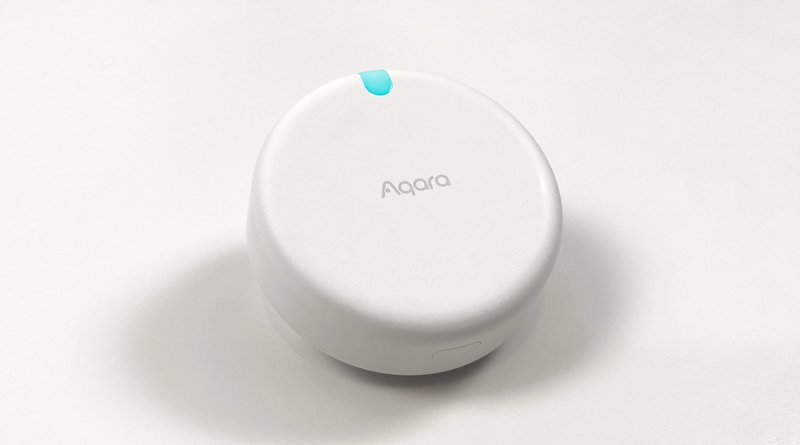
Whatever you buy, remember the cheapest fix of all: devices that don’t use Wi-Fi don’t cause Wi-Fi problems. Moving your temperature and humidity sensors onto Zigbee or Thread via a hub like the Aqara M100 takes a dozen chatty clients off your access point entirely, and battery life goes from months to years as a bonus.
Is Wi-Fi 8 worth waiting for?
Short answer: no. Longer answer: it’s the first Wi-Fi generation designed around something smart homes actually need.
802.11bn — Wi-Fi 8 — is branded “Ultra High Reliability”, and unusually for a Wi-Fi release, the headline numbers aren’t about speed. Peak throughput is essentially unchanged from Wi-Fi 7. What’s targeted instead is roughly 25% better performance in poor signal conditions, 25% lower latency, and 25% fewer dropouts when roaming between access points.
Read that list again with a smart home in mind. Poor signal conditions, latency and dropouts are the smart home Wi-Fi problem. A sensor in a garage at the edge of coverage doesn’t need more megabits; it needs to not fall off.
The catch is timing. Wi-Fi 8 hardware showed up at CES 2026 — ASUS demoed its ROG NeoCore concept router, with silicon from MediaTek and Broadcom behind it — and ASUS says a retail product lands sometime this year. But the IEEE standard isn’t targeted for approval until September 2028, and Wi-Fi Alliance certification won’t arrive until around the turn of 2027–28. Everything shipping before then is pre-standard.
We’ve watched this movie before with Wi-Fi 6E and Wi-Fi 7. Early adopters pay a premium for firmware that gets fixed eighteen months later. And critically: none of this reaches your existing devices. Your bulbs will still be 2.4GHz-only in 2029.
Buy Wi-Fi 7 now at 2026 prices — the gap over Wi-Fi 6E has narrowed to $50–150 — and revisit in 2028 when Wi-Fi 8 is certified and your devices can actually use it.
The thirty-minute checklist
In order, highest impact first:
- Split your SSIDs by band. Put smart home devices on 2.4GHz.
- Set 2.4GHz to channel 1, 6 or 11 at 20MHz width.
- Verify IPv6 is enabled on your LAN.
- Turn off IGMP snooping / multicast filtering, and disable multicast-to-unicast on your IoT network.
- Hardwire everything you reasonably can — hubs, cameras, TVs, outdoor camera recorders.
- Move sensors off Wi-Fi to Zigbee or Thread where you have the option.
- Only then consider new hardware.
The bottom line
The smart home industry spent four years telling us that Matter would fix reliability. It’s fixed interoperability, which is a genuinely different problem. Reliability was always a network problem, and it’s still sitting in your router’s advanced settings behind three menus nobody opens.
The good news is that it’s the rare smart home problem you can solve for free, tonight, without buying anything. Split your bands, fix your channels, leave multicast alone, and turn IPv6 back on. Do those four things and most of the flakiness you’ve learned to live with simply goes away.